Assign Training
The Training page is where you can assign and manage training records for employees. Assigning training denotes verifying that the employee has successfully completed the training and obtained a certificate of confirmation.

To access the Training page, select Training from the Personnel menu.
The page is divided into two tabs - Training By User and Training By Training Title and exlpained below.
Training By User
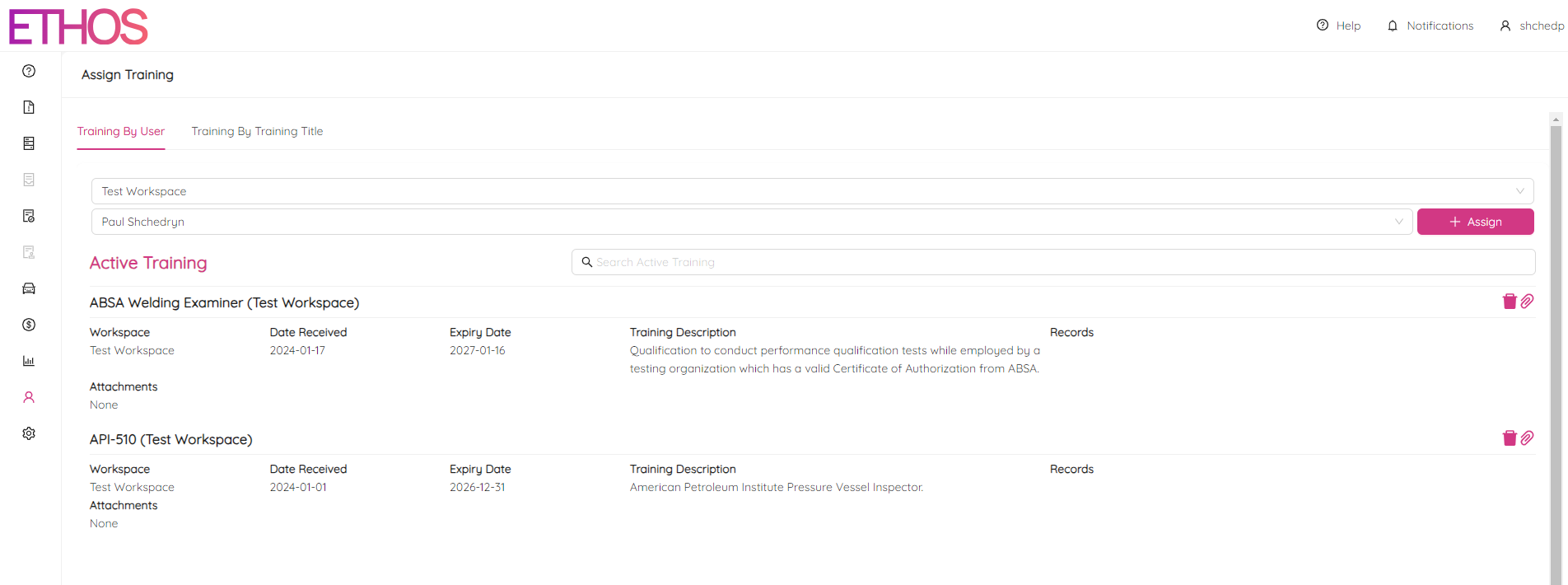
On the Training By User tab, you can view all trainings assigned to an employee and assign a new one.
To view employee trainings including information such as expiry dates and supporting documents, first choose a workspace and pick an employee at the top of the page. You can type a request in Select Employee bar to find a specific worker. Below, you will see active and expired pieces of training assigned to the selected person. To make a quick search among assigned trainings use the Search Active Training or Search Expired Training bar accordingly. Every training can have an attachment which you can view simply by clicking on the purple bar under Attachments section.
You can delete any training by clicking  icon at the top right corner of every assignment.
By clicking on the  icon you can attach a document that proves completion of the training.
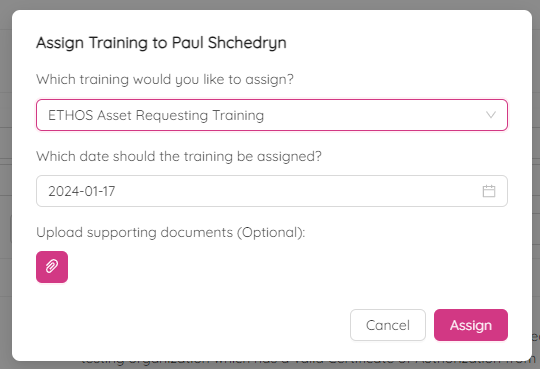
To assign training to a specific employee click on the + Assign button at the top right of the page. Then, select the desired training from a list and the date of the training. To find a training, type in a request. If applicable, upload any supporting documents and submit the assignment by clicking the Assign button.
Training By Training Title
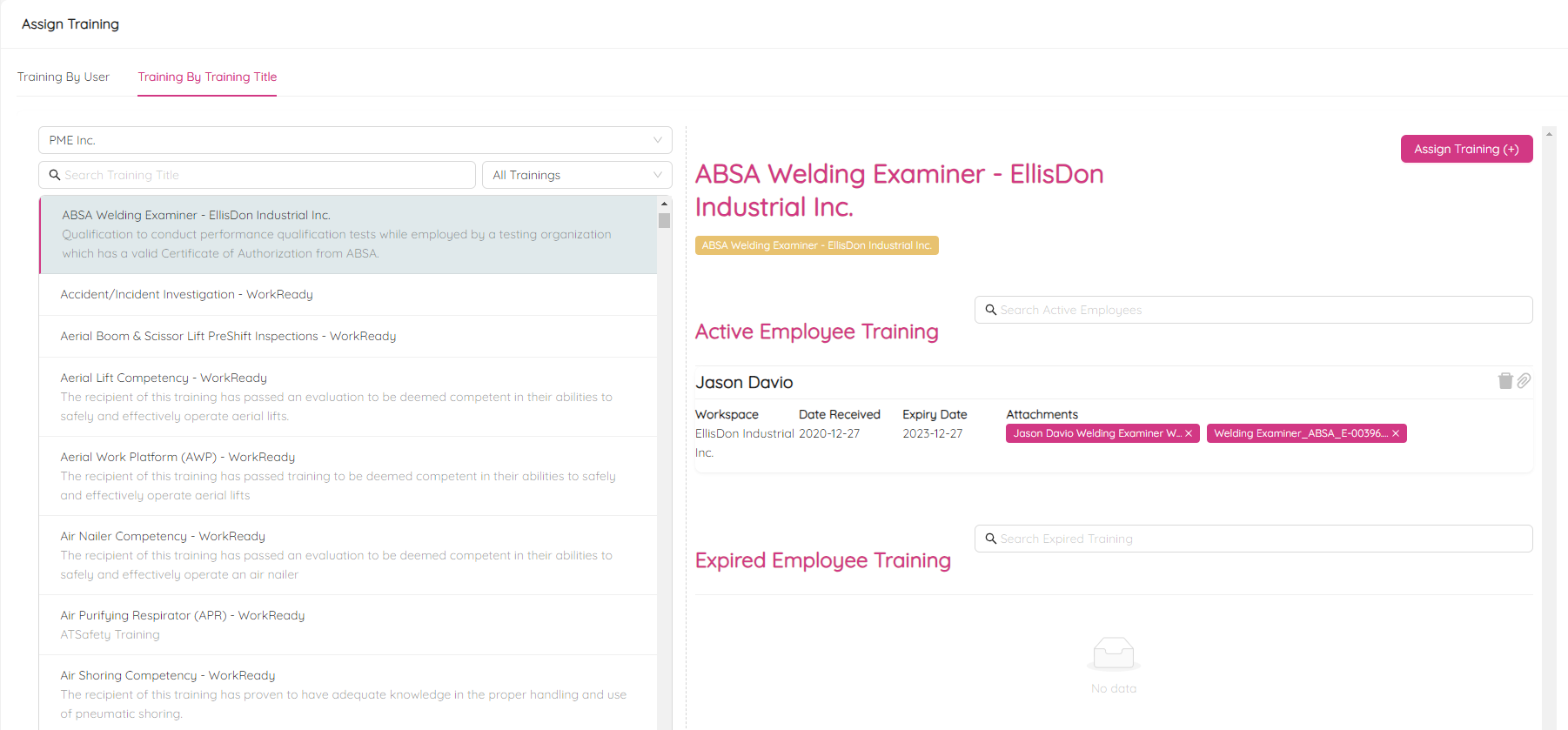
On the Training By Training Title tab, you can view and assign trainings to an employee from the training perspective.
To view all assignments related to a particular training, first choose a workspace and pick a training at the top of the page. You can type in a request in the Search Training bar to find a specific training by its title. Also, you can filter out Active, Inactive or All pieces of training by using the following drop-down list.
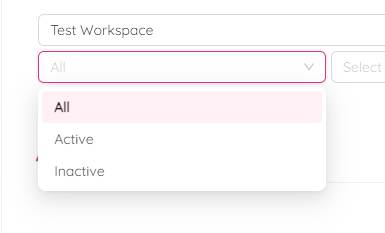
Below, you will see active and expired assignments including information such as workers' names, expiry dates and supporting documents related to the selected training. To make a quick search among assigned trainings use the Search Active Training or Search Expired Training bar accordingly. Every assignment can have an attachment which you can view simply by clicking on the purple bar under Attachments section.
You can delete any assignment by clicking icon at the top right corner of every assignment.
By clicking on the icon you can attach a document that proves completion of the training.
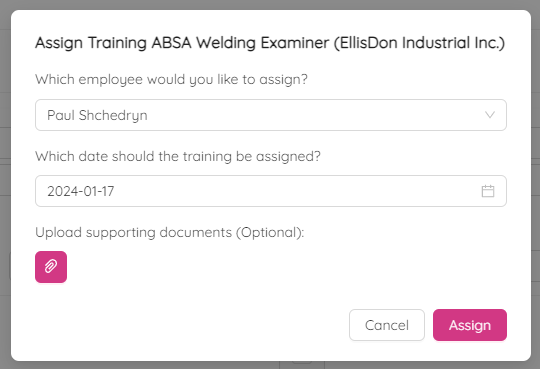
To assign the training to an employee click on the + Assign button at the top right of the page. Then, select the desired person from a list and the date of the training. To find a person, type in a request. If applicable, upload any supporting documents and submit the assignment by clicking the Assign button.